Agent Catalog: what the AI does
This page lists the jobs the AI does for you. For each job you see what starts it, what it may do without you, and where you switch it off.
On this page we use two plain words:
- helper: an AI job that answers or acts for you.
- check: an automatic test that runs before a change is saved or a message goes to a guest.
The four families
The app sorts the helpers into four groups. Each group has a section below.
| Family | What starts it | Where you set it up |
|---|---|---|
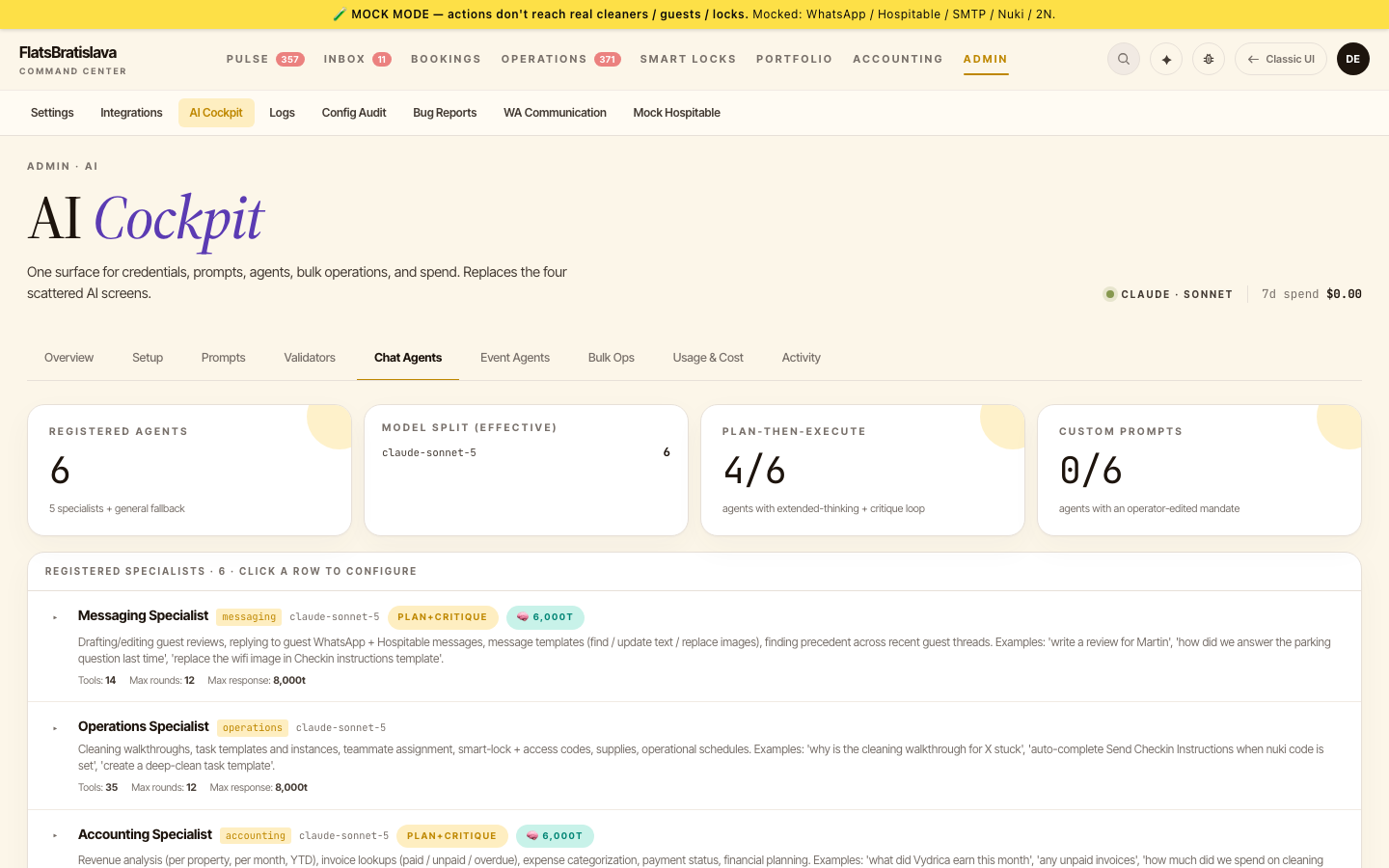
| Chat specialists | You, typing in the Pulse Copilot | AI Cockpit → Chat Agents |
| Validators | A change or a message to a guest, automatically | AI Cockpit → Validators |
| Event agents | A guest message that reports a problem | AI Cockpit → Event Agents |
| Background agents | Bookings, messages, and the clock | Operations → Task Templates (per-rule) |
Family 1: Chat specialists (the Pulse Copilot)
You type a question in the Pulse Copilot. The app picks the helper that fits your question, and that helper answers. You cannot change how the app picks. If no helper fits well, General answers.
Two small things also run on every question, and you cannot switch them off:
- Questions that have nothing to do with running your flats get a polite no. This only filters topics. It does not protect your data.
- A request with several parts is split into up to 5 smaller jobs. Each job goes to the right helper, and you get one answer back.
The helpers you can edit
Edit each one in AI Cockpit → Chat Agents. You set its AI model, how long it thinks, how many steps it may take, how long its answer may be, whether it plans first, and its main instructions. Changes work from the next message.
| Helper | What it does | Can it make changes? |
|---|---|---|
| Messaging | Drafts guest replies and reviews, looks up past answers in other chats, edits message templates | Yes. Template edits show a preview first; a guest reply you approve sends without a second confirmation |
| Operations | Tasks, task templates, cleaning, supplies | Yes, template edits show a preview first |
| Accounting | Revenue, invoices, payouts, city tax | Only reads; invoice actions show a preview |
| Knowledge | House manual, FAQs, knowledge corrections | Yes: knowledge corrections apply immediately, no preview |
| Property | The property details: check-in times, guests, locks | Yes, preview first |
| Listing Advisor | Names, titles, listing text, how to stand out on Airbnb/Booking | No: it can only read. It suggests and stops |
| General | Questions no other helper fits; the busiest helper | Yes |
⚠️ Know which writes skip the preview. Most Copilot changes show you the change and ask you to confirm. Three do not: knowledge corrections (they change guest-facing text right away), template image updates, and an approved guest reply (approving it sends it). AI-written guest messages also go through the Outgoing Message Check below.
If the Copilot says it changed something but nothing was saved, a warning banner tells you. Then check the record yourself.
Family 2: Validators (the write/send guards)
These are the checks. The list of checks is yours to edit in AI Cockpit → Validators. It applies to your account only, and the tab shows which checks run for you. The two standard checks:
| Validator | Checks |
|---|---|
| Task Template Safety | Creating or changing a task template |
| Outgoing Message Check | Every message to a guest, sent by the AI or by you |
For each check you set two things: how serious a problem must be to stop the message (blocking threshold), and how sure the check must be (confidence threshold). See Validator thresholds.
Two rules protect your guests:
- Access codes always go through: the check never stops a message that contains a guest's access code. A guest locked out at midnight is worse than a clumsy sentence.
- Access-code delivery guard: when a task is marked done, the app also checks that the code was really sent.
Family 3: Event agents
Maintenance agent
- What it does: when a guest message reports a problem, it reads the details. Then it suggests a fix for you to approve, or creates a task for a person.
- Starts when: the AI marks a guest message as "maintenance needed".
- Alone: it only suggests. You approve or reject with WhatsApp buttons. It never fixes things without you.
- Switch off: AI Cockpit → Event Agents.
Think of it as a quick check, then a hand-off. It can suggest: sending the access code again, sending the WiFi details again, sending the parking details again, or checking a smart lock with a low battery.
Family 4: Background agents (the always-on jobs)
These helpers work while nobody is typing. You control them on the screens named below, not with one switch each.
Stay Planner: plans the tasks for every booking
- What it does: creates the tasks for every booking from your task templates (make the access code, send check-in, plan cleaning, ask for a review), each at the right time.
- Starts when: a booking is created, changed or cancelled.
- Alone: it creates and cancels tasks. It never sends anything.
- Switch off: per-rule, in Operations → Task Templates.
Readiness Checker: checks the real world before acting
- What it does: when a task is due, it checks the task's conditions (PIN made? guest replied? cleaner assigned?). All true: it completes the task and runs its action. Not true: it marks the task blocked and tells you on WhatsApp which condition failed.
- Starts when: a task is due.
- Alone: it completes or fails tasks. A skipped action is never marked "done".
- Switch off: the auto-resolve setting on each template (Tasks → Auto-resolve).
Outbound Guard: checks every message to a guest
This is another name for the Outgoing Message Check in Family 2. It checks every message to a guest (auto-send, Copilot, typed by hand). If it stops a message, you choose Refine / Send Anyway / Dismiss. Switch it off in AI Cockpit → Validators (the Outgoing Message Check row).
Mood Watch: reads how every guest is doing
- What it does: reads each guest message for language and mood and saves it on the booking. Mood rules can then react (a thank-you after a happy message, extra care after an upset one). Reply drafts use the guest's language.
- Starts when: a guest message comes in.
- Alone: it only reads and saves. Other helpers act on it.
- Switch off: none (always on).
Knowledge Keeper: remembers your corrections
- What it does: when you correct an AI answer in the Copilot chat, it saves the correction. Later replies from any helper use it.
- Alone: it saves the correction immediately, with no preview.
- Switch off: the Knowledge helper in AI Cockpit → Chat Agents.
Price Scout: keeps prices for empty nights up to date
- What it does: gets current channel prices for upcoming empty nights, so the vacancy card in Pulse shows what an empty night could earn.
- Starts when: on a schedule.
- Alone: it only looks up prices. It never changes one.
- Switch off: none (information only).
Current limits
- Most agents wait for your OK. Two things act without a second OK: the Readiness Checker completes due tasks, and a guest reply you approve is sent right away. For the message check, you choose per template whether you decide or the AI rewrites first.
- One event agent. Event Agents has only the maintenance agent for now.
- Background agents are named, not separately toggleable. You control them on the screens listed above.
- Agents never give themselves more freedom. Only you change what a helper may do alone.
Related
- AI Cockpit overview · Chat Agents editor · Prompts editor · Cost dashboard
- Pulse Copilot user guide
- Validator thresholds