PriceLabs
PriceLabs is a separate pricing service with its own subscription. A home you run in luxury.host can have its nightly prices set by PriceLabs instead of by luxury.host. This page explains what changes when you switch a home over, what stays the same and how to undo it.
Who it is for
- The home is connected to the integrated channel manager. Only then does its Integrations tab show the section “Who sets the prices?”.
- You are an admin of your luxury.host account. Creating the key and switching a home over are admin actions.
- It works one home at a time. Each home has its own key and its own switch.
Who sends what
| The home's prices set by luxury.host (default) | The home's prices set by PriceLabs | |
|---|---|---|
| Nightly prices | luxury.host | PriceLabs, to the rate plans you set to update type “Price” in PriceLabs |
| Availability and blocks | luxury.host | luxury.host |
| Minimum and maximum stay, stop sell, closed to arrival, closed to departure | luxury.host | luxury.host, sent without a price |
While PriceLabs sets the prices, luxury.host sends no price for that home: not in a full sync, not when a single night changes. Minimum stay stays set in luxury.host only if PriceLabs updates prices alone. That is why the setup asks you to choose update type “Price”, not “Price and Restrictions”.
The key for PriceLabs
PriceLabs reaches the home through a key to the channel manager. You create it in luxury.host, on the home's Integrations tab, in the block “Connect PriceLabs”.
- The key works only for this one home. luxury.host checks that, and withdraws a key that would reach more.
- For that home the key can also change availability and the home's set up, not only prices. Keep it private, like a password.
- The key is shown once, with a “Copy” button. luxury.host keeps only an encrypted copy and never shows it again.
- “Create a new key” withdraws the old key first, so a home never has two.
- “Deactivate key” withdraws the key and any keys PriceLabs made with it. If luxury.host cannot check for such keys, it asks you to have the channel manager's support withdraw them.
Switching a home over
Under “Who sets the prices?”, click “Set up a pricing tool”. The window “Prices managed by a pricing tool” lets you choose PriceLabs or another pricing tool. It warns that PriceLabs can write one price to every rate plan in the channel manager, so you tick “I understand” before “Switch on” works.
luxury.host switches a home over only when it read the home's prices from the channel manager in the last hour. If the last read is older, it reads once more first. If the read fails, the home stays as it was and you can try again a few minutes later.
Switching changes one setting and records who changed it and when. No price is sent and nothing is deleted. Your default prices, price rules and rate plan percentages stay saved. While PriceLabs sets the prices they cannot be edited; luxury.host answers “Prices for this home are managed in PriceLabs.”
What you see in luxury.host afterwards
- The home says “Prices are managed in PriceLabs. luxury.host shows them read only.”
- The availability calendar shows the prices read back from the channel manager, marked “PriceLabs price (read only)”. You can still block a night or change its restrictions.
- luxury.host reads the prices of these homes every 30 minutes. It never writes them.
- Each rate plan shows the column “Offset to set in PriceLabs”: the percentage the plan should differ from the standard plan, and whether the nights checked follow it. If they do not, a banner asks you to check the offsets in PriceLabs. luxury.host changes nothing by itself.
Homes still priced by luxury.host are read once a day. If a price shows up there that luxury.host did not send, the home shows a banner that another tool is writing prices to the channel manager. Nothing is changed.
Switching back
- Turn sync off in PriceLabs.
- In luxury.host, on the Integrations tab, click “Switch back to luxury.host” and confirm. This changes the setting back. It does not send prices by itself.
- Click “Full sync to the Integrated channel manager” on the same tab. luxury.host then sends its own prices to every rate plan again.
- To stop for good, also click “Deactivate key”.
Set it up, step by step
Before you start
- The home is connected to the luxury.host integrated channel manager. To check, open the home in luxury.host and go to the Integrations tab. If you see the section “Who sets the prices?”, the home is ready.
- You have your own PriceLabs account. PriceLabs is a separate service with its own subscription.
Step 1: create the key in luxury.host
In luxury.host, open the home and go to the Integrations tab. In the section “Who sets the prices?” you find the block “Connect PriceLabs”. Click “Create key”.
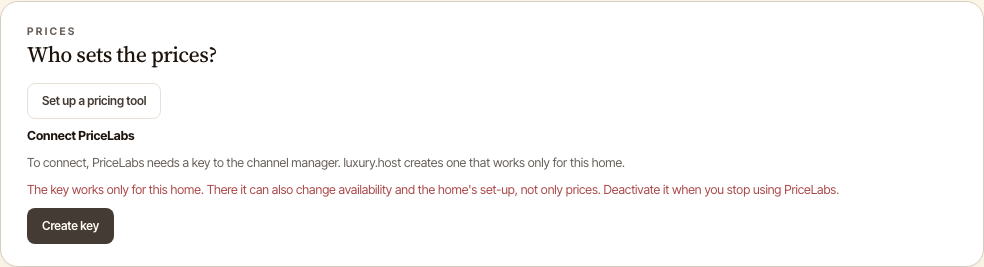
The “Connect PriceLabs” block on the Integrations tab of a demo home.
luxury.host creates a key that works only for this home and shows it. Click “Copy”. The key is shown only once, so copy it right away.
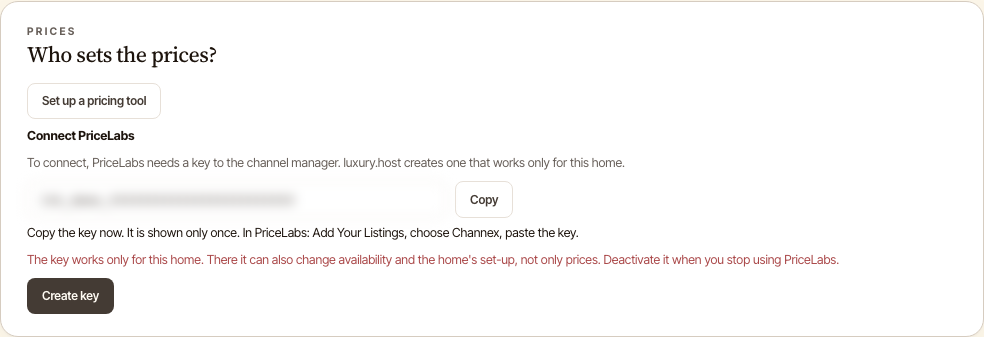
The key with the “Copy” button. The key is blurred in the image.
Keep the key private, like a password. For this home it can also change availability and set-up, not only prices. If you lose it, click “Create a new key”: luxury.host withdraws the old key first.
Step 2: add the home in PriceLabs
In PriceLabs, click “Add Your Listings”, choose “Channex” from the list, paste the key and click “Connect”. Channex is the channel manager luxury.host uses. The rooms of the home then appear in PriceLabs as listings. Add another home the same way: create its own key in luxury.host and paste it into PriceLabs. Do not turn on price sync yet.
Step 3: choose the rate plans PriceLabs may update
This step protects the prices your booking sites sell. Without it, PriceLabs can write one price to every rate plan of the room, also the plans the booking sites sell, and ignore the differences between them.
In PriceLabs, open Pricing Dashboard, then Review Prices, and find Rate Plan Customization. Set each rate plan:
- A plan PriceLabs should price: update type “Price”. If the plan should cost more or less than the default plan, give it a fixed or percentage offset.
- A plan PriceLabs must not touch: update type “None”.
- Do not choose “Price and Restrictions”. Minimum stay and the other restrictions stay set in luxury.host.
PriceLabs needs one default rate plan for each listing. It takes the first plan it imported unless you choose another one.
Step 4: switch the home to PriceLabs in luxury.host
In luxury.host, on the Integrations tab under “Who sets the prices?”, click “Set up a pricing tool” and choose PriceLabs. The window lists what changes: PriceLabs writes the nightly prices to the booking sites, and luxury.host sends no price for this home. Availability, blocks, minimum stay and restrictions are still sent from luxury.host. Nothing is deleted: your default prices, price rules and rate plan percentages stay saved, unused.
Read the warning, tick the box and click “Switch on”.
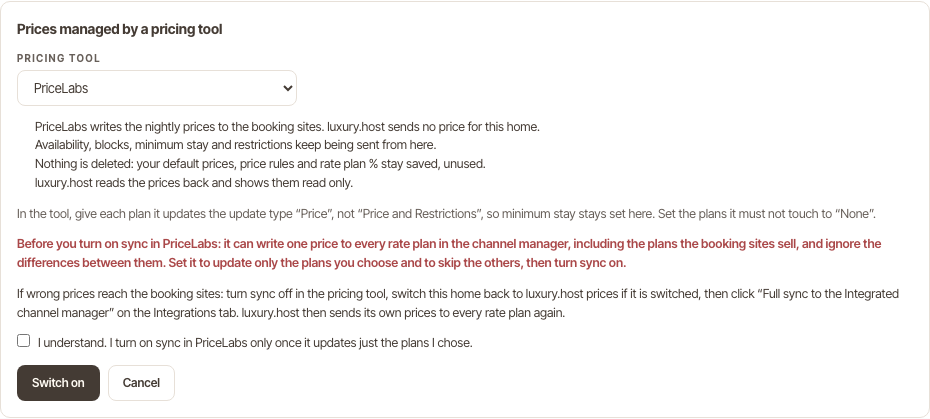
The switch window. luxury.host changes nothing until you click “Switch on”.
Step 5: turn on sync in PriceLabs
Back in PriceLabs, turn on Sync Prices, or click Sync Now to send the prices once. In luxury.host the home now says “Prices are managed in PriceLabs”, and its availability calendar shows the prices read back from the channel manager, read only.
What syncs where
- PriceLabs sends the nightly prices of the rate plans you set to “Price”.
- luxury.host sends availability, blocks, minimum stay and the other restrictions.
If wrong prices reach the booking sites
- Turn sync off in PriceLabs.
- In luxury.host, open the home's Integrations tab, click “Switch back to luxury.host” and confirm.
- Click “Full sync to the Integrated channel manager” on the same tab. luxury.host then sends its own prices to every rate plan again.
To stop using PriceLabs for good, do the same and click “Deactivate key” in the “Connect PriceLabs” block. After that, PriceLabs cannot reach the home.
Source for the PriceLabs steps: PriceLabs help center, How to integrate PriceLabs with Channex. PriceLabs is a separate service, not part of luxury.host. Screens from a luxury.host demo home.