Pulse Copilot
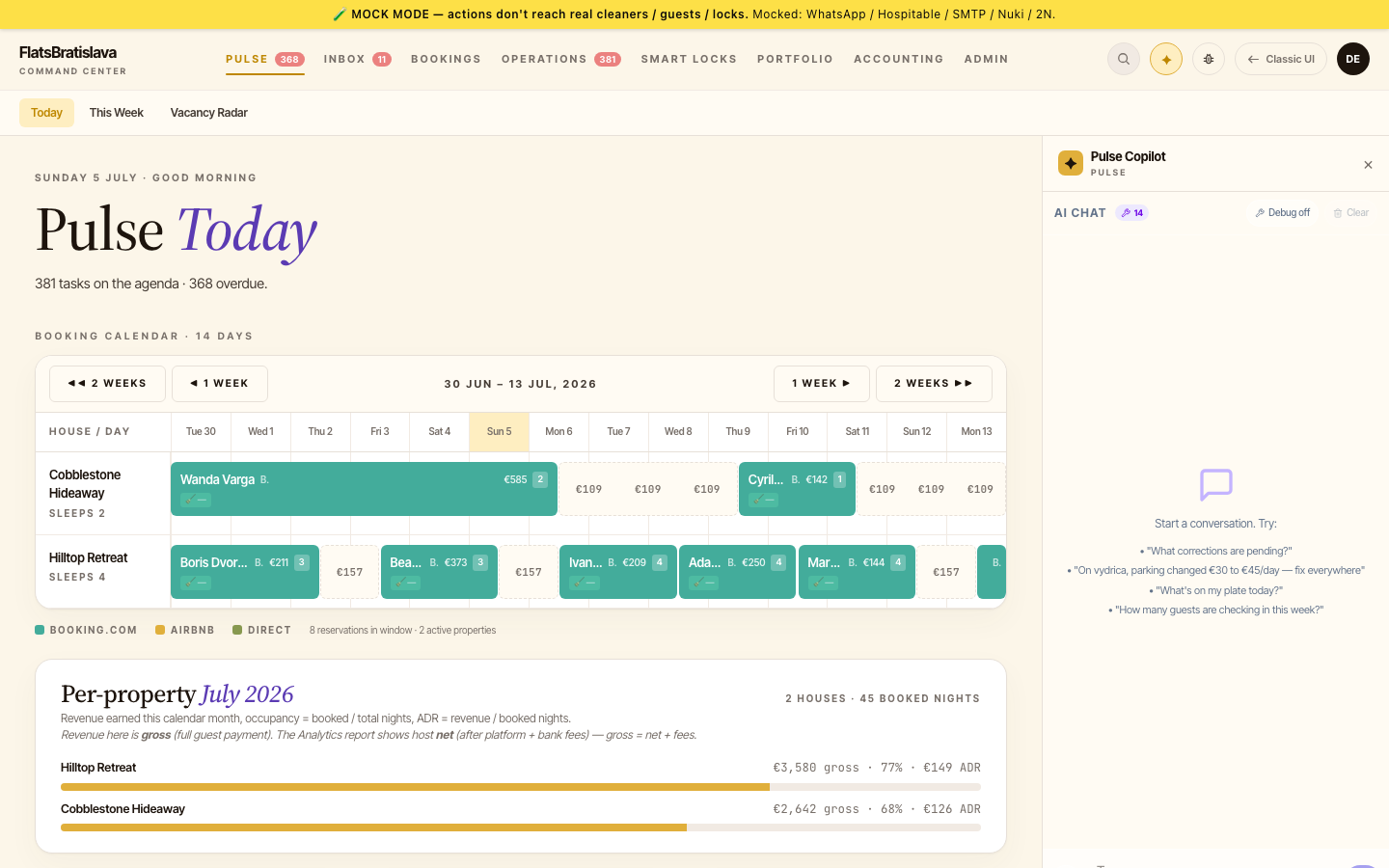 Pulse Copilot is the AI assistant inside the Pulse dashboard. You ask a question in your own words. It can read your data, find a teammate, look up a property and, when you ask, create a task for you.
Think of it as a chat shortcut for everything you can do on the dashboard, and a way to ask questions about your business.
In this section
- Overview (this page)
- Usage: common things to ask, and what you get back
- Tone rules learned from your edits: Copilot proposes a rule when you make the same change to AI drafts in 3 bookings (slovensky)
- Single free night suggestions: Copilot proposes to open your 1 night plan on a free night between two bookings (slovensky)
Overview
What it can do
- Answer questions about your operations: "What's on my plate today?", "How many cleanings does Nina have this week?", "Is there a booking in the Old Town Loft next weekend?"
- Create tasks for you: "Create a task for Tomáš to buy oven cleaner for the Tatra View Apartment, here's a photo."
- Find people and properties: "What's Nina's WhatsApp number?", "Show me the settings for the Old Town Loft."
- Draft messages: "Draft a check-in message for the guest arriving tomorrow."
Where it lives
A panel that floats at the bottom right of the Pulse dashboard. Click the chat icon to open it; click again to dock it.
The chat history stays when you move between pages in Pulse. Clear starts a new chat.
Image attachment
You can add images in two ways:
- Paperclip icon → choose a file from your device.
- Paste (CMD+V / Ctrl+V) an image you copied: it is added as if you uploaded it.
Useful for: a screenshot of a guest's WhatsApp chat, a photo of a broken appliance, a screenshot of an Airbnb review.
Images up to about 5 MB work. The app prepares the picture for upload, which can make it larger (up to 6.67 MB). A larger image shows a short warning message.
How it handles requests
To answer, the chat may take several steps:
- You send a message, with images if you want.
- The assistant looks things up or does things for you: it finds a teammate, a property, a booking or a task template, creates a task, searches messages, and more. Each one is a small step.
- It may do several small steps before it answers, until it knows enough (at most 16 steps).
- The answer ends with a line: "Used N tool rounds this turn. Handled by: \<specialist>". This line tells you how many small steps it took (N) and which kind of helper answered (for example a messaging helper or an accounting helper).
Trust model
This is how you know it really did what it says: the chat tells you what tools it called and what they returned. You see a check badge, "✓ Created task #N", only when the step really ran AND worked. If the chat says it created a task but no step ran, a warning banner says:
⚠ The assistant says it did X but no tool was called: please verify.
If you see that banner, check in Operations → Tasks before you assume it happened.
Timeout & long requests
Big requests (an image plus many steps) can take 30 to 120 seconds. If a request really takes too long, you see:
The server is taking too long to respond. Your message may still be processing. Check back in a moment before retrying.
Retry behaviour
The Retry button does not send big images from the failed message again by itself. It warns you first, so a large upload doesn't fail the same way again.