Auto-close on restock
When a supply drops below its reorder level, the app creates a restock task. When stock is back up (a receipt was added, or you added stock by hand), the restock task closes by itself. You choose if it counts as done or as cancelled.
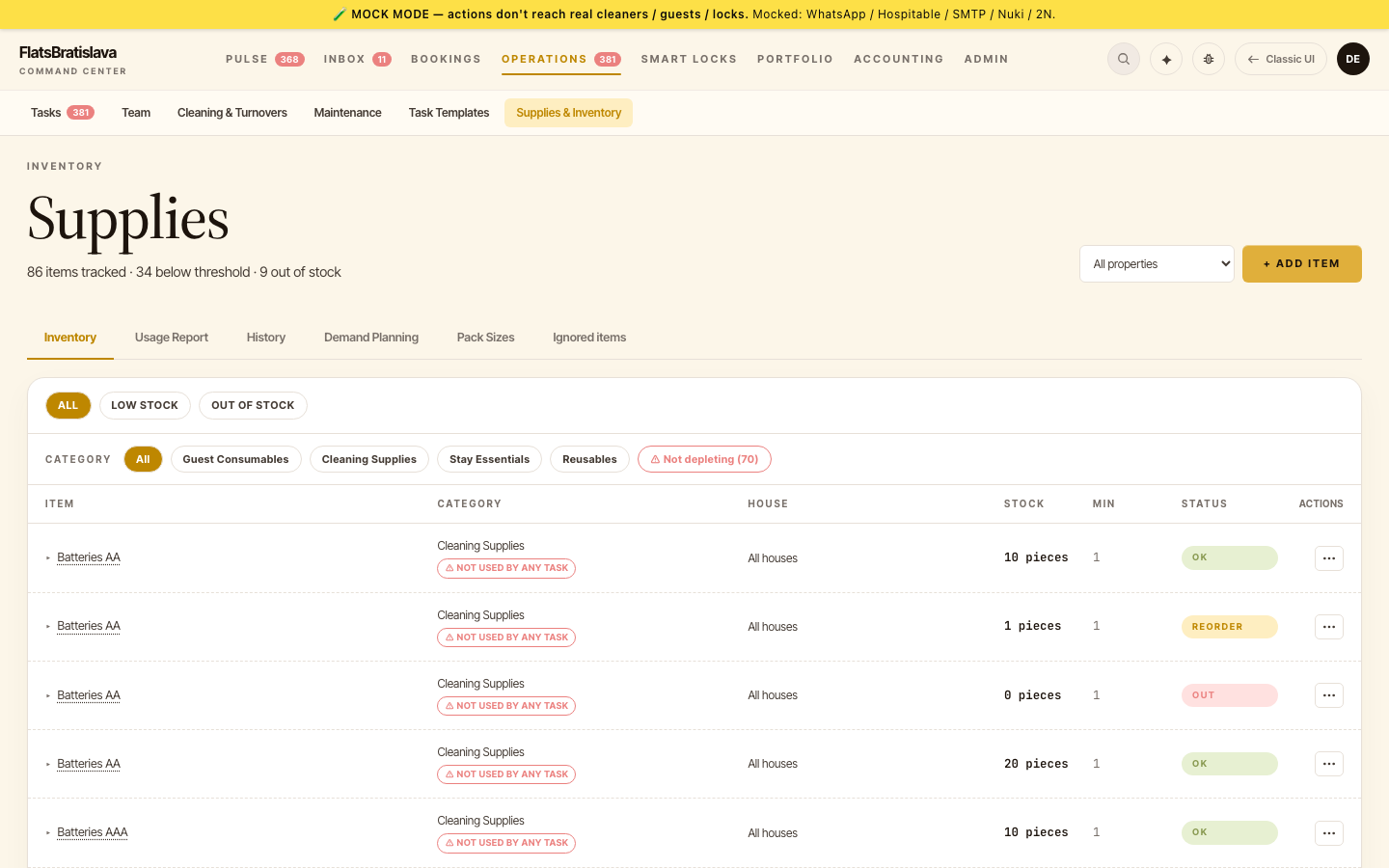
This page shows how to set this up.
The close action setting
Each task template has a close-action field:
resolve: when the reason for the task is gone, the task is markeddoneand everything that normally happens on completion happens (summary, audit log, completion time). Use it when "no longer needed" should count as a finished task.discard: when the reason is gone, the task is markedcancelled. Nothing else happens. Use it when the task was only a guess and nobody really had to act.
The default for supply templates is resolve.
Change the close action in the Task Templates editor under Auto-close behavior.
What "the reason is gone" means
For supply tasks: the supply is back above the reorder level.
For other tasks that the app creates by itself, it is whatever condition created the task. The app checks it again and again against the current state.
When the task closes
The app re-checks open tasks all through the day, not once at a fixed hour. For each open task that has auto-close turned on:
- It checks the condition that created the task again.
- If the condition is no longer true, it does the close action you chose.
You see the task disappear (discard) or move to "completed today" (resolve).
See what closed by itself
A task that closed by itself shows as a status change on the Audit tab under Admin → Logs. If you wonder why a task disappeared, look there.
Tasks that should NOT close by themselves
Some tasks should stay open even when the original reason is gone. Example: a "Send Check-in" task that starts when a guest's check-in comes up. Even after check-in time has passed, the task should stay (you may have to send it late by hand).
For those templates, leave Auto-close behavior = off in the editor. The app skips them.