Team & Access
The people who work in your account (hosts, cleaners, admins) and the door codes that let them in.
In this section
- Teammates: add, edit and remove teammates
- Access Codes: a Nuki PIN and a 2N QR code for each teammate
- Cleaner Walkthrough: the
plánflow (Slovak for "plan"): the daily list of cleanings a cleaner gets in WhatsApp
Where to find it
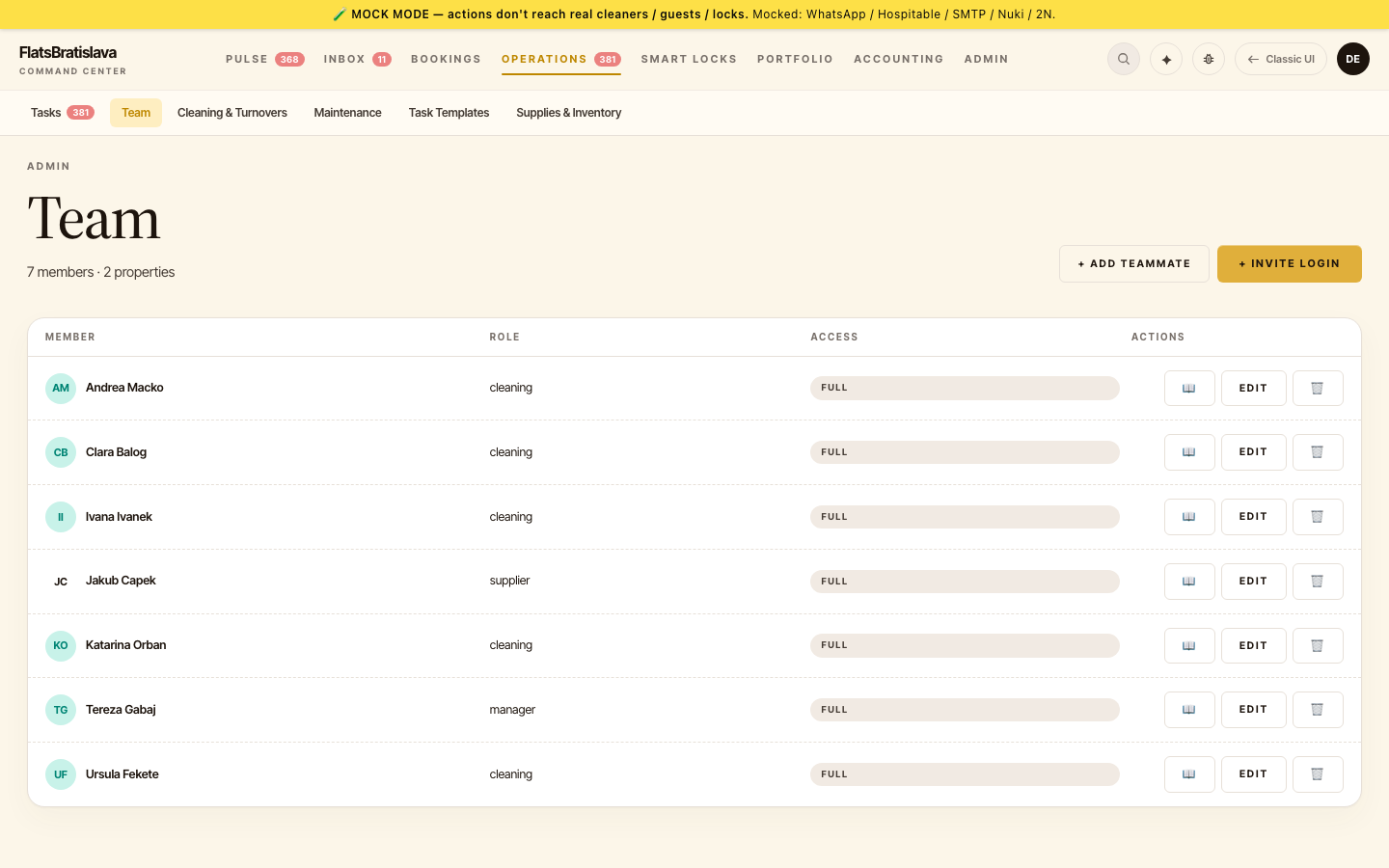
- Team & Account: the list of your teammates, with the editor.
- Click a teammate to open the editor. There you set their roles, language, access codes and properties.
Two kinds of roles
The app uses the word "role" for two different things. Do not mix them up.
- Teammate roles describe the work a teammate does. You set them in the teammate editor. A teammate does not need a login.
- Login roles decide what a person who signs in may do. You set them on the Team screen.
Teammate roles
In the teammate editor, open the section ROLES ("What this teammate does"). Tap one or more roles. The roles choose which tasks the teammate gets and which pay rate applies.
| Role | What the teammate does |
|---|---|
cleaning |
Cleans the flats. Gets the plán (the daily list of cleanings) in WhatsApp. |
maintenance |
Does repairs, plumbing and similar jobs. |
laundry |
Washes linens and towels. |
supplier |
Brings supplies. |
manager |
Runs operations. This is not a field job. |
| Cleaner manager | Looks after a team of cleaners. Sees the cleanings of the whole team in the WhatsApp plan, but does not clean. |
Logins
You manage the people who sign in to your account on the Team screen. Open Operations → Team. Only a login with the Administrator role can add, change or remove logins. Handle it with care.
What a login is
- Logins are people who sign in and work in the app.
- Teammates do the work (cleaners, hosts). They get tasks by WhatsApp and do not need a login. See Teammates.
One person can be both. A login can be linked to a teammate.
Login roles
A login can have one or more of these roles:
- Administrator
- Manager
- Owner
A new login starts with all three roles, so the person can use everything. Switch off the ones they should not have. You can change them later.
These login roles are not the teammate roles above. Setting Manager on a login does not give a teammate the manager role, and the other way round.
Adding a login
- Open Operations → Team.
- Press + INVITE LOGIN.
- Fill in EMAIL. NAME (OPTIONAL) and TEMP PASSWORD (OPTIONAL) are optional. A temporary password needs at least six characters.
- Press SEND INVITE.
If you set a temporary password, tell the person yourself, for example by phone or message.
Changing or removing a login
- On the Team screen, find the card LOGIN ACCOUNTS.
- Press MANAGE LOGINS.
- For each login you can: - switch the roles ADMINISTRATOR, MANAGER and OWNER on or off. A login must keep at least one role. - link the login to a teammate, or choose No teammate linked. - press REMOVE, then CONFIRM REMOVE. The login is deleted for good.
You cannot remove your own login. You cannot remove your own ADMINISTRATOR role.
⚠ Keep at least one login with the ADMINISTRATOR role. Without it, nobody can manage logins.
A teammate from start to end
- Add the teammate in the editor: name, role, language, WhatsApp number.
- Assign properties they look after.
- Generate access codes: a Nuki PIN, and a 2N QR code if you use 2N.
- Send guestbook URLs (optional): a personal guestbook link for hosts who want their own page.
- Role ends: remove the teammate. This also deletes their Nuki PIN.