Task Templates
Task Templates
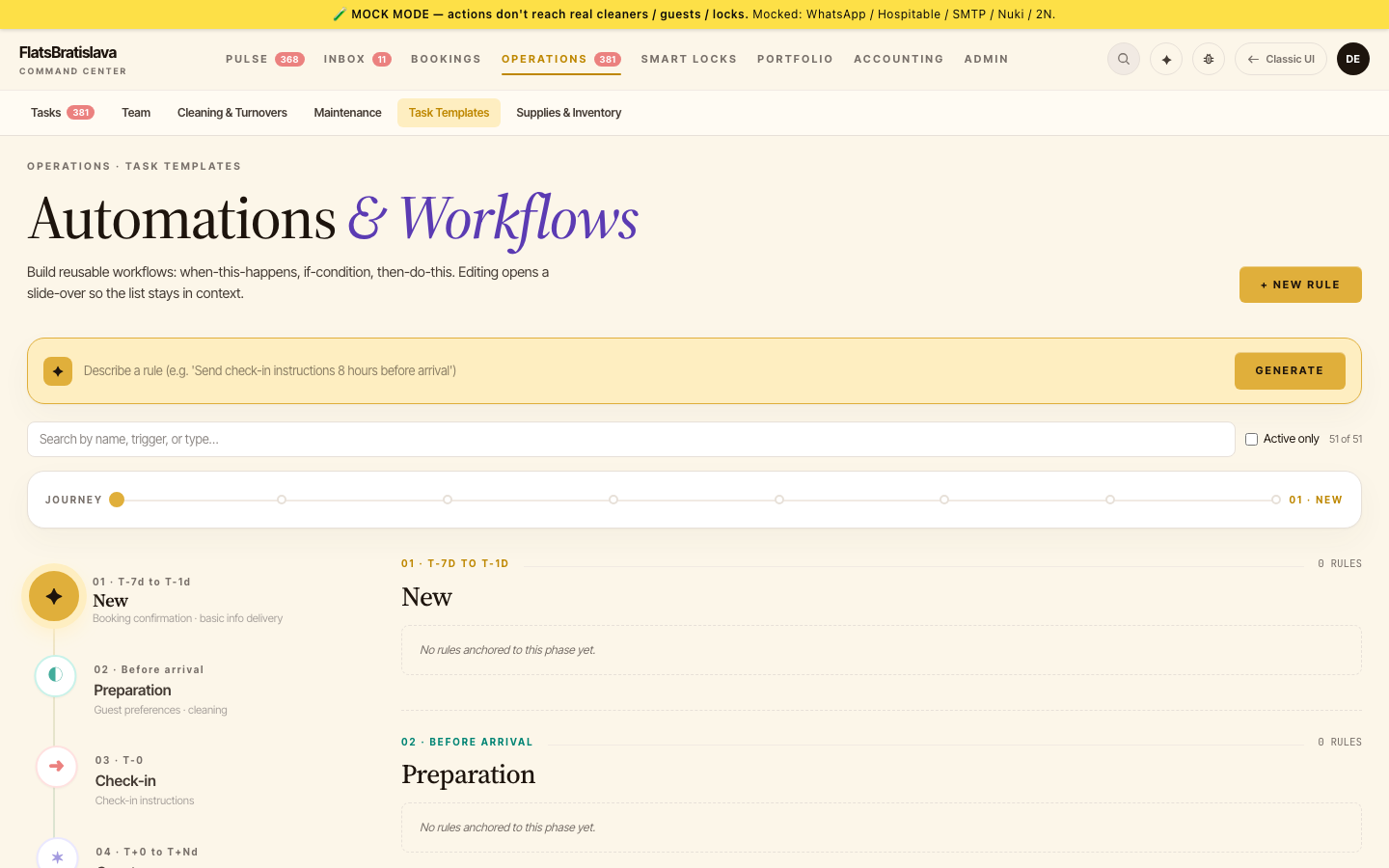 A task template is a rule: "whenever this happens with a booking, create this task with this action". In the task templates editor you set up all your automation: what is sent, when, in which language, and to whom.
In this section
- Editor: how to use the task template editor
- Placeholders:
{{guest.name}},{{property.address}}and more - Actions: what a task can do for you, for example send a WhatsApp message (
whatsapp.sendTemplate) or make a door code (nuki.generateCode) - Conditions: the checks before a task runs, for example "check that the door code exists" (
reservation.nukiAccessCode is_not_null)
Where to find it
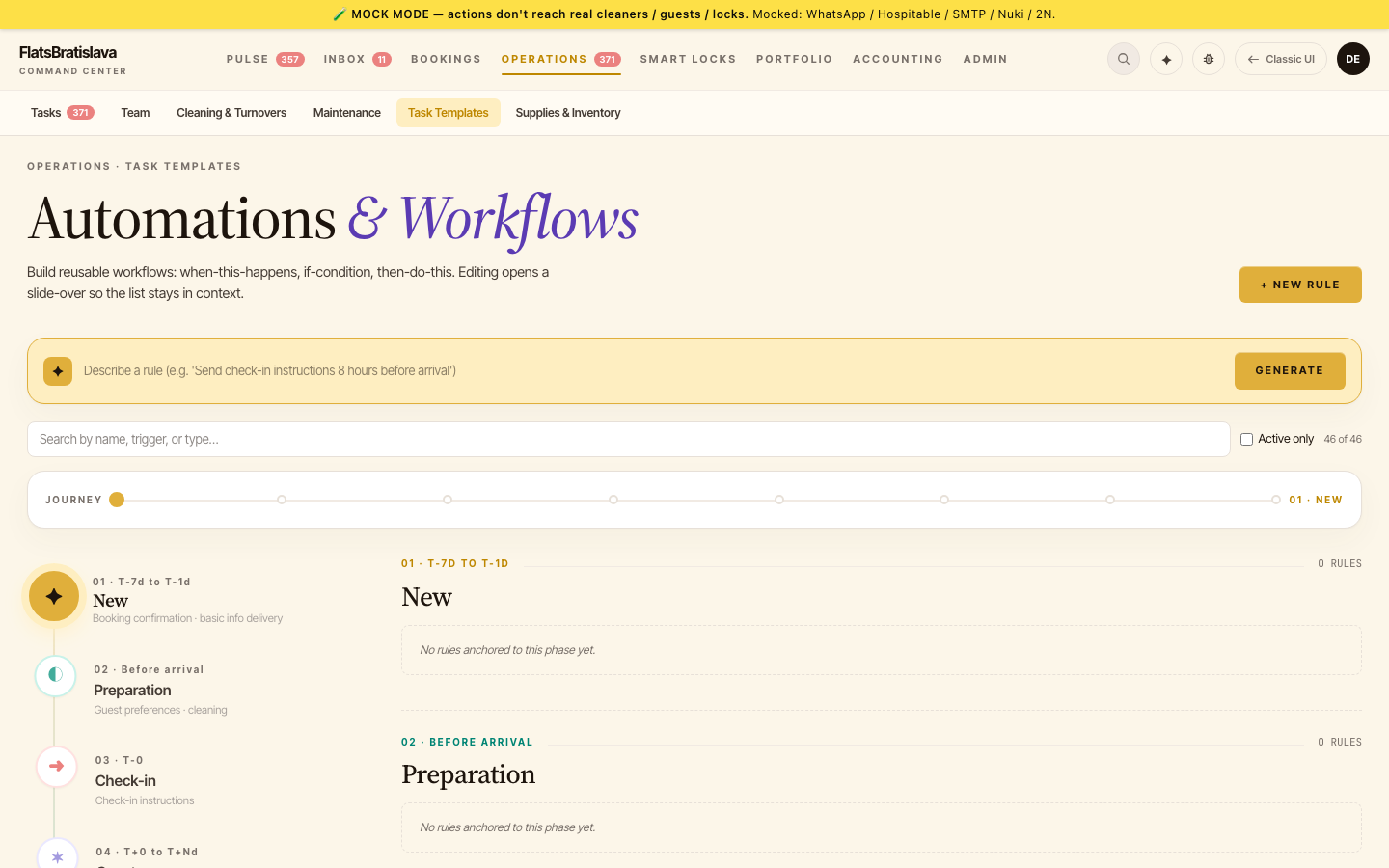
Open Operations → Task Templates.
What a template contains
- Name (for example "Send Check-in instructions")
- Event that starts it: when a booking arrives, at check-in, at check-out, after check-out, and more
- Trigger offset: how long before or after the event (for example "24h before check-in time")
- Assignee role (host / cleaner / admin / one teammate)
- Action: what the app does when the task is done, for example send a WhatsApp message (shown in the editor as
whatsapp.sendTemplate) - Action settings: texts that can hold placeholders (for example "Hi {{guest.name}}, your code is {{guest.nukiAccessCode}}")
- Conditions (optional): checks that must pass before the task runs on its own
- Allow dismiss: whether you may close the task without running the action
Steps to set up a template
- Define the template in the editor: name, event, action, settings.
- Validate: the editor checks your placeholders, the action settings and the languages.
- Dry-run on a real booking: see what would happen, without sending anything.
- Save: the template is on. New bookings that match the event get tasks.
- Iterate: edit the template. New tasks use the new version. Tasks that already exist keep the version they were created with.
How a template becomes a task
For every booking, when the event happens:
- The app checks: should this template run for this booking? (Not if the booking is cancelled, and not if the task was already created.)
- If yes, it creates the task with a copy of the template's action, settings and conditions.
- It sets the time for the automatic checklist item, if there is one.
- It sends the person in charge a WhatsApp notification.
See Tasks → Auto-resolve for what happens at the set time.
Source: the luxury.host operator manual.