Smart Locks screen
The Smart Locks screen shows your locks, door codes, lock history and battery for each property.
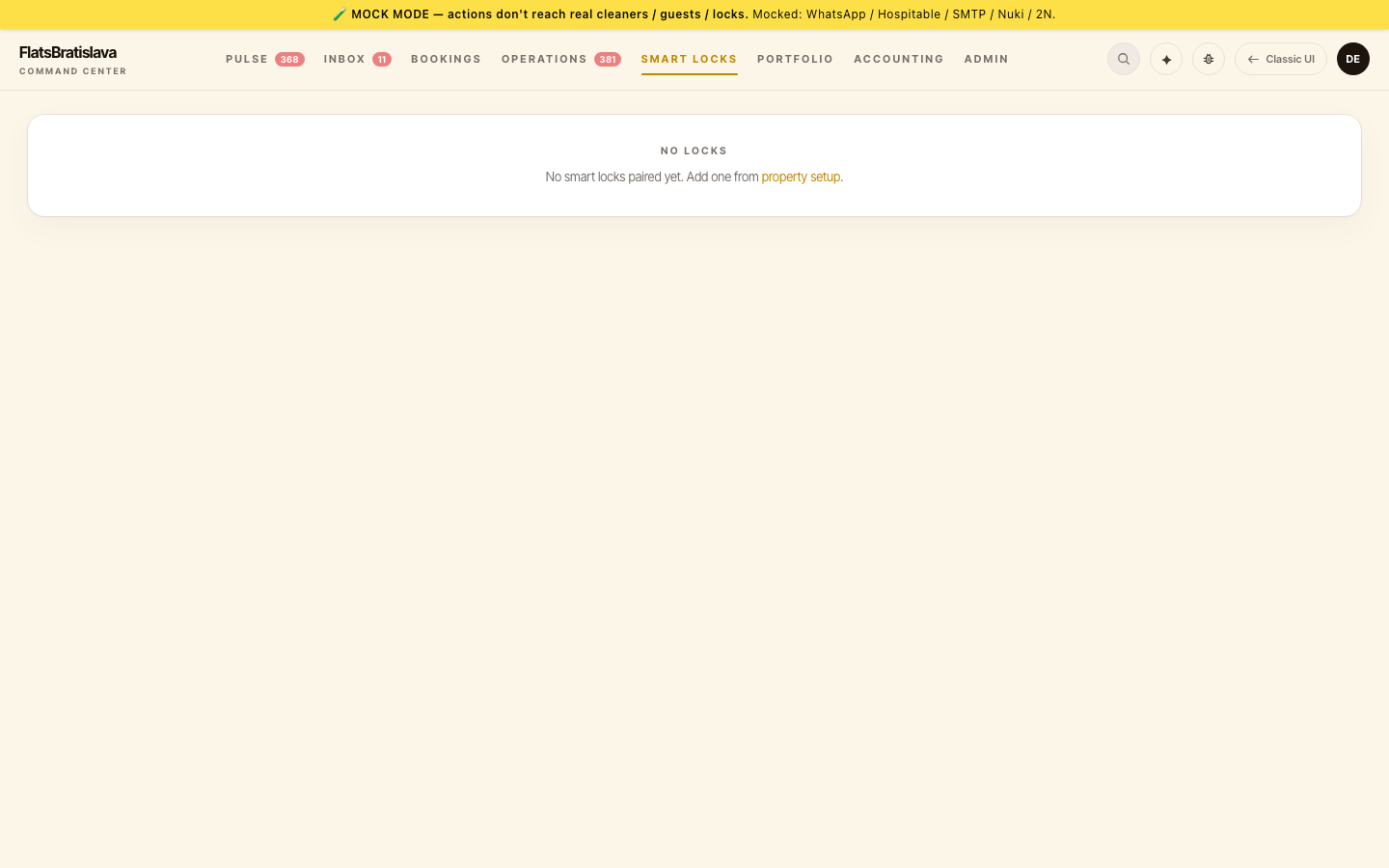
Tabs depend on your locks
When you open a property on the Smart Locks screen, you see the tabs for the locks it has. A tab that does not fit is greyed out:
- Property with Nuki only: tabs
Lock Control/Codes/Activity Log/Charging. The2N QRtab is shown but greyed out. - Property with 2N and Nuki: all tabs work.
- Property with no lock connected: you see a setup prompt instead of tabs.
The 2N QR tabs work only on properties that really have a 2N intercom set up.
Activity log
Each property has ONE log with everything that happened at the door:
- Nuki lock events (unlock, lock, other lock activity)
- 2N intercom events
- What you or your team did (code created, code removed)
- What the app did by itself (code made, code removed)
- Lock faults, shown with a
⚠ faultchip.
Filter chips at the top: All / Access / Admin / Automation / Faults.
Charging tab
Battery history:
- Battery events also appear in the main activity log list.
- The Charging tab shows battery events only.
Status of each lock
Some properties have more than one lock (main door and garage). The Smart Locks card shows the status of each lock:
Old Town Loft · front door: LOCKED (95%) · garage: OFFLINE
Faults in the activity log
Every lock problem (a wrong PIN typed, an error on Nuki's side, no answer from the lock in time, a wrong fingerprint) appears as ⚠ fault in the activity log, with the reason. Click the Faults chip to see only problems.
Fault notifications say which kind of fault it is (invalid PIN, error from Nuki, timeout), not just a general title.