Teammates
Your teammates are the people who work in your homes: cleaners, maintenance, laundry, suppliers and managers. You manage them on Operations → Team.
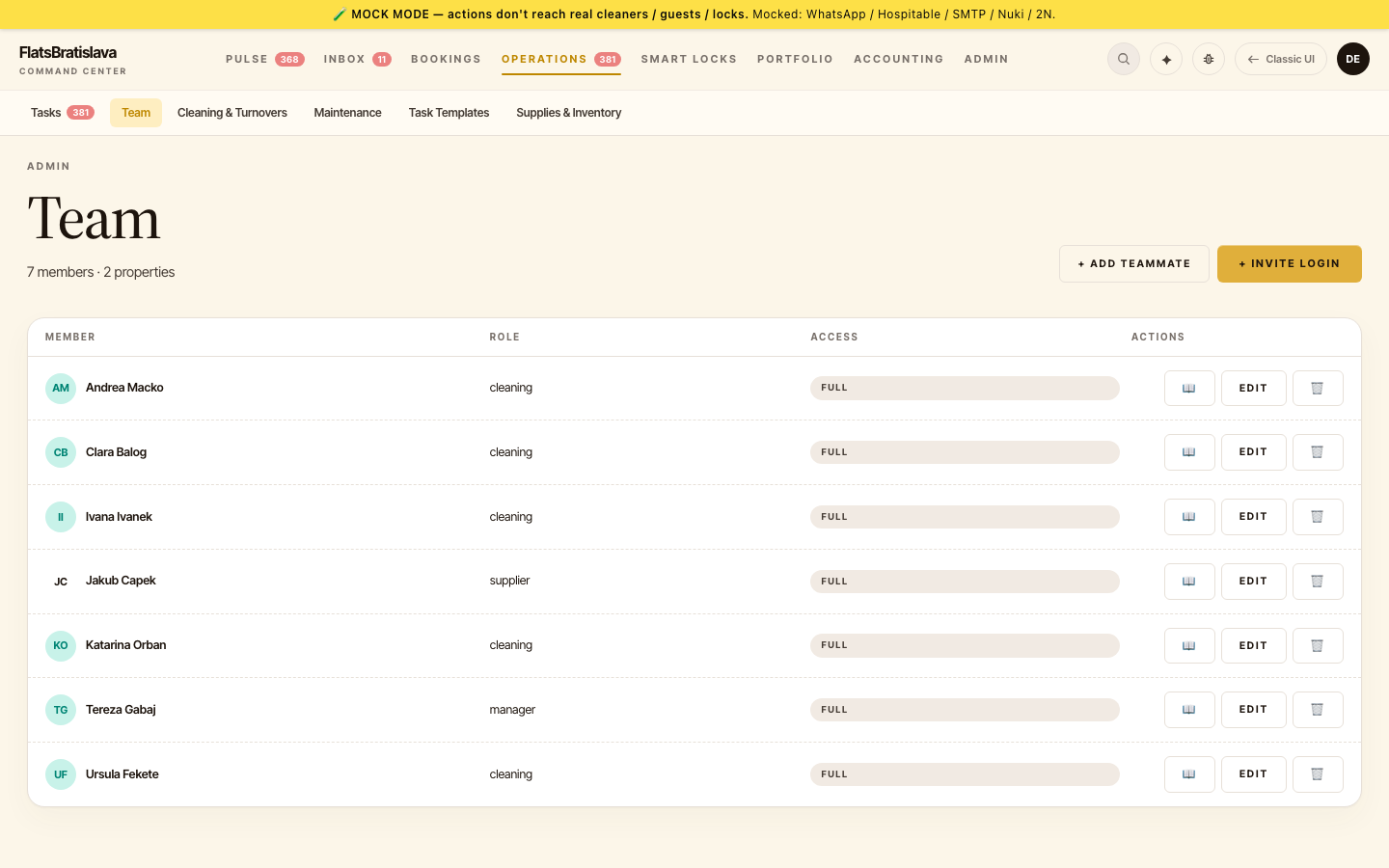
The Team screen
- + ADD TEAMMATE opens an empty teammate form on the right.
- EDIT on a row opens the same form for that teammate.
- 📖 (Generate guestbook URL(s)) makes a welcome page link for this teammate for each of your homes. The page shows the home's details and only this teammate's own door codes, so they can look up how to get in. The links show up under the row.
- 🗑 (Delete teammate) asks you to confirm with CONFIRM ✕.
- The TEAMS card groups cleaners into teams. Click + CREATE TEAM to add one.
- + INVITE LOGIN gives someone their own login to the app. A teammate does not need a login to get tasks on WhatsApp.
The teammate form
IDENTITY: Who is this teammate?
First name, Last name and Phone. Tasks and messages for this teammate go to this phone number on WhatsApp.
LANGUAGE: Communication language
Messages from you to this teammate are written in this language. The Don't translate messages in list is for languages the teammate already speaks: guest messages in those languages are shown as written, without a translation. See Communications → Languages.
ROLES: What this teammate does
Tick one or more roles:
| Role | Use it for |
|---|---|
| cleaning | Someone who cleans your homes |
| maintenance | Repairs and fixes |
| laundry | Washing and changing linen |
| supplier | Someone who delivers supplies |
| manager | Someone who runs the day to day for you |
| Cleaner manager | A cleaner who also looks after a team of cleaners |
Roles decide which tasks go to the teammate.
TEAM: Cleaning team
Pick the cleaning team, or No team. A Cleaner manager sees the cleanings of the whole team in their WhatsApp plan. Without a team, a cleaner sees only their own cleanings.
AVAILABILITY: Weekdays available for work
Tick the days the teammate can work.
PROPERTIES: Where this teammate works
All Properties covers every home you have, including homes you add later. Select Specific limits the teammate to the homes you pick.
PAYOUT: How this teammate gets paid
- Payout type: Bank Transfer or Cash. It decides where the teammate's open payouts show in the payout report.
- Pays for purchases with: Own money (we pay it back) or Company card.
- Bank account (IBAN): for bank transfers.
ID PHOTO: Identity verification
Upload a photo of the teammate's ID. View uploaded ID opens it again.
ACCESS CODES: Smart Lock PINs
Pick a PIN that is already on the home's smart lock and click ADD, or click GENERATE to make new codes for this teammate. Click Remove code to take one away. Removed codes stop working on the lock when you save. See Access Codes.
If the teammate has cleanings in the next 7 days and no PIN, the form warns you, because they could not get in.
Notification settings
Choose which tasks the teammate hears about (Whose tasks: Mine, All team tasks or All tasks) and where: WhatsApp, or App (bell and push notifications, which needs an app login).
Common jobs
Adding a new cleaner
- Go to Operations → Team and click + ADD TEAMMATE.
- Enter the first name, last name and phone, and pick her language.
- Under ROLES, tick cleaning.
- Under PROPERTIES, pick the homes she will clean.
- Under AVAILABILITY, tick the days she can work. Under TEAM, pick her cleaning team if she has one.
- Under ACCESS CODES, click GENERATE for each home.
- Save. Her cleaning tasks now go to her on WhatsApp. See Cleaner Walkthrough for what she sees.
A cleaner is leaving
- On Operations → Tasks, find each of her open tasks and use the teammate picker on the task (it reads "Assign this task to a teammate" when you point at it) to give it to another cleaner.
- On Operations → Team, click 🗑 on her row, then CONFIRM ✕.
Her smart lock codes are removed from the locks and she gets no more tasks.
Deleting a teammate does not move their open tasks, so reassign them first.
Changing roles
Click EDIT, change the ticks under ROLES and save. It applies to new tasks from then on.