Task Card Anatomy
A task card is the box that shows one task: on the Pulse dashboard, in the Operations Tasks list and on the booking page. Each part of the card tells you something about the task and its checklist.
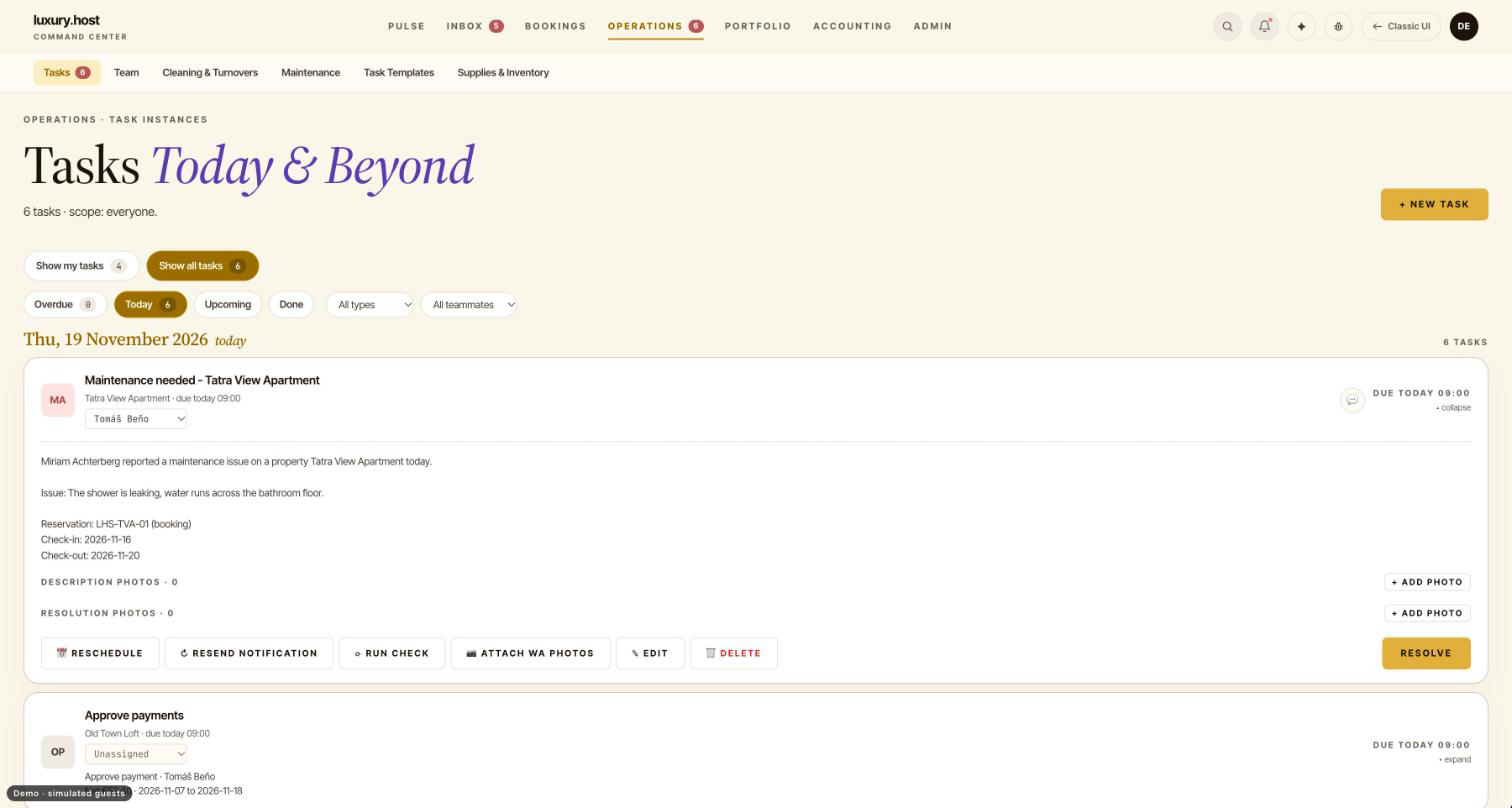
What is on the card
Here is an example card, from top to bottom:
- Top line: Pre checkout guest reminder · AUTO · 19:00 ⚠ condition not met
- Booking line: Old Town Loft · Ines
- Description: Auto-fires at 19:00 today · sends checkout message to Ines about reservation checkout details at 18/05/2026.
- Checklist: Auto-complete at 19:00 (when 1 condition met)
- Actions: Send to Ines, Reschedule, Run check, Edit, Delete
The parts are explained below.
The top line
The top line shows what matters most:
- Task name (from the template, in your language): "Pre checkout guest reminder"
- Flow marker:
AUTOmeans the task finishes on its own. No marker means you do it by hand. - Scheduled fire time:
19:00, the time the app checks the task - Condition status:
⚠ condition not metif the warning is on and a condition is not met right now
The booking line
Flat, guest and check-in date, so you know which stay it is without clicking.
The description
One plain sentence about what the task does. For automatic tasks it starts with "Auto-fires at HH:MM today/tomorrow/YYYY-MM-DD · …", so you see the time again.
Checklist items
Not every task has them. Some tasks have steps a teammate or cleaner must tick ("Confirmed door is locked", "Took photo of bedroom"). Automatic tasks also have a special checklist item, hidden by default, that holds the time and the condition.
Action buttons
The buttons you see depend on the task:
- Send to (guest name): for message tasks, sends the message to the guest now.
- Resolve: marks a task that is not a message as done.
- Reschedule: move the task to another date or time.
- Run check: check the conditions now, without waiting for the next automatic check.
- Resend notification: send the task notice to the teammate again.
- Edit: change the task.
- Delete: removes the task. This cannot be undone; see Task List
- Reopen: on a finished task, puts it back to open.
Why a card might not show what you expect
| What you see | Likely cause |
|---|---|
| Time is empty | The task has no set time (you do it by hand, it has no automatic checklist item) |
Card is Done but no message was sent |
Check the Activity Log. A skipped message marks the task Failed with a reason |
| Condition shows blocked, but it looks fine | The app may have read the wrong guest record. If the guest has a PIN, send Check-in by hand from the reservation page. See Send Check-in |
| Flat name missing in the top line | The flat has no name. Add it in the property editor |