In-app notifications
When something needs your attention, the app tells you on screen as well as on WhatsApp. The browser tab shakes, a sound plays, and a small message box slides in. You confirm it once, and it is cleared in every tab you have open. If you do not confirm it within 60 seconds, you get the WhatsApp message anyway.
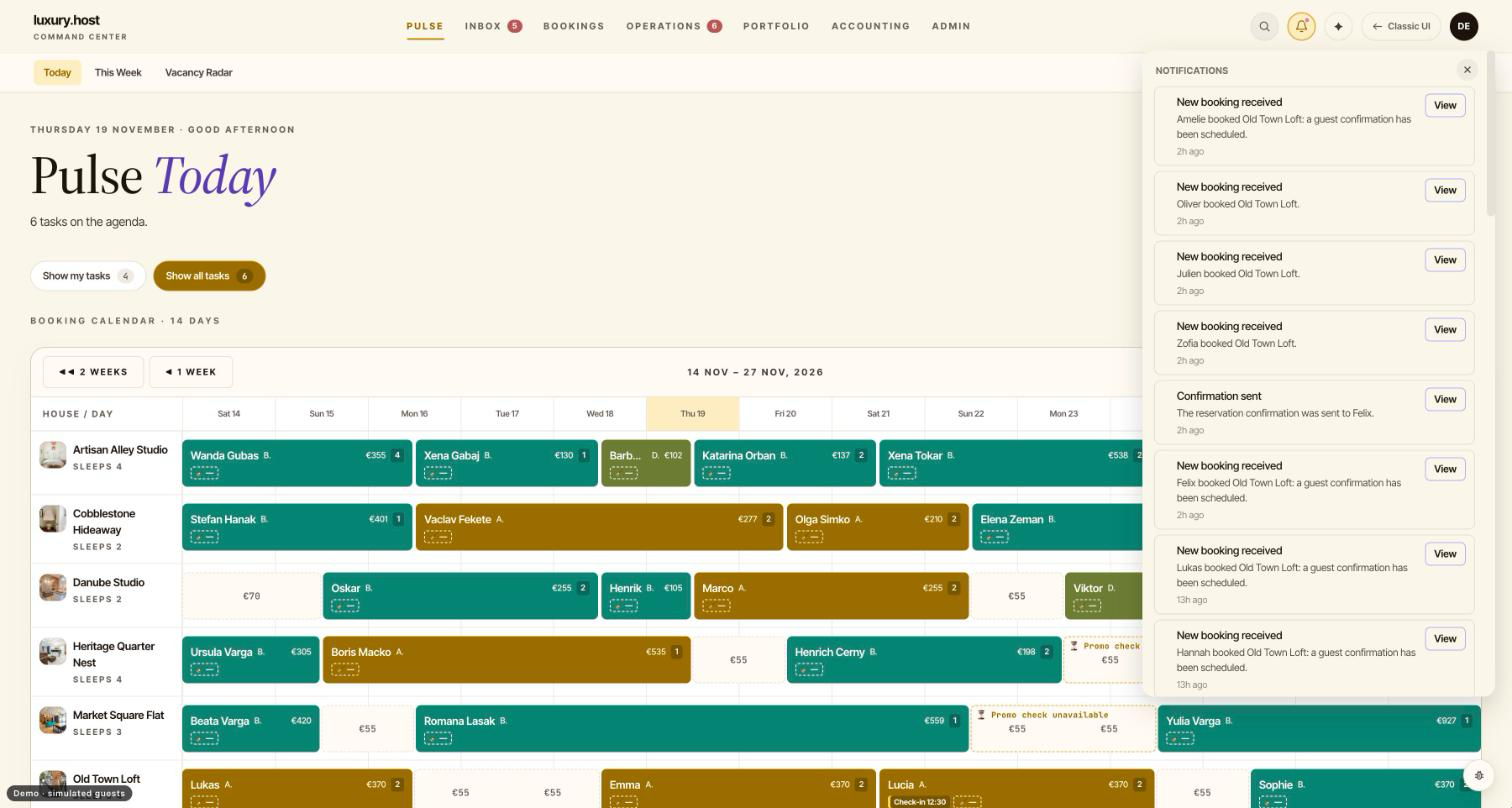
Open the settings in Settings → Notifications.
Why both
WhatsApp is reliable, but messages can get lost or delayed (closed chats, messages sent in groups, or the WhatsApp limit that allows free messages only within 24 hours of the last reply). In-app notifications cover you while you are working in the app:
- WhatsApp is the backup: if you do not confirm in the app within 60 s, the WhatsApp notification is sent anyway.
- On screen first: when you are at your desk, you confirm on screen and get no extra WhatsApp message.
What a notification looks like
- Tab title shake: the tab title switches between the page name and
[N] luxury.host, so you notice it from another tab. - Audio cue: a short ping (you can change it). It is silent when you are already looking at that tab.
- Message box: a box in the top-right corner with a summary and a button to open the item (for example "Send Check-in BLOCKED for Danube Studio → open task").
- Bell with a count: the bell in the top header shows a count. Tap it to see everything you have not confirmed yet.
Confirming a notification
When you confirm a notification:
- The shake and the sound stop.
- It is marked as confirmed in all your open tabs and windows.
- The WhatsApp message planned for 60 s later is cancelled.
If you do not confirm it in any tab within 60 s, the WhatsApp message is sent as described in task notifications.
Settings
Defaults for your account
In Settings → Notifications:
- Audio enabled: sound on or off for everything.
- Audio volume: 0 to 100.
- Tab shake enabled: tab shake on or off for everything.
- Toast duration: how many seconds the message box stays before it closes by itself.
- WA fallback delay: how long to wait before WhatsApp is sent. Default 60 s.
Different setting for one task template
Each task template (in the Task Templates editor) has an In-app notification field:
- inherit (default): uses your account defaults.
- force-audio: plays a sound even when sound is off in your defaults. Use it for urgent templates.
- silent: no sound and no shake, even when they are on in your defaults. Use it for low-priority alerts.
- wa-only: no in-app notification at all, always WhatsApp.
So you can make Send Check-in BLOCKED loud with shake and sound, and keep "Generate guest book" silent.
Browser permission
The app uses your browser's normal notification permission. The first time you open the app, the browser asks you to allow notifications. If you allow it, you also get system notifications when the tab is in the background.
If you block it, the in-tab box, shake and sound still work. Only the system notifications do not.
The notification list (the bell)
The bell in the top-right corner opens a panel with your notification list. It shows your recent notifications, newest at the top, with unread ones first, each marked with a dot. The bell dot lights whenever you have an unread notification. Each row has a View button. It marks the row as read and opens the item it is about.
On the phone, the bell on the Pulse screen shows the same list.
AI learning proposals in the list
What you will see here most often is an AI learning proposal, for example "Proposal for FAQ update: Old Town Loft". Once a day the AI groups the drafts you marked with 👎 (see AI Cockpit). When the same problem repeats, it creates one proposal for each group of similar drafts to fix the instructions, FAQ or tone behind it. Click View to open the proposal in the AI Cockpit, where you decide. Nothing is applied until you approve. The proposals wait for you in the bell.